
Pix
The Pix Area brings together everything related to Pix in your digital account: send, receive, read/generate a QR Code, manage keys, and view your history.
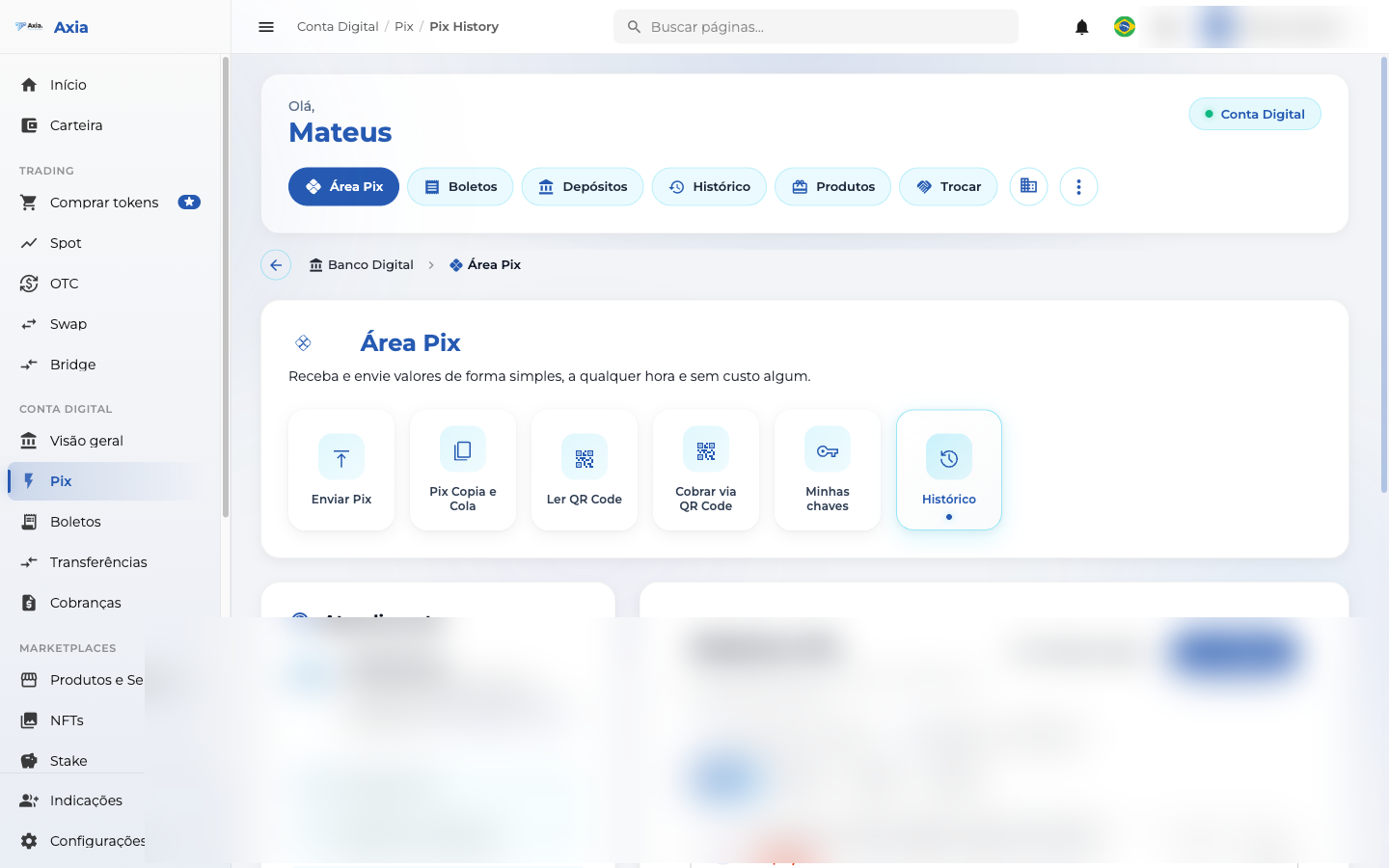
Available shortcuts: Send Pix, Pix Copy and Paste, Read QR Code, Charge via QR Code, My keys, and History.
Send Pix
1. Enter the key and the amount
Type the recipient's Pix key (CPF, CNPJ, email, mobile number, or random key) and the amount. The side panel shows your balance and your limits (per transfer and daily).
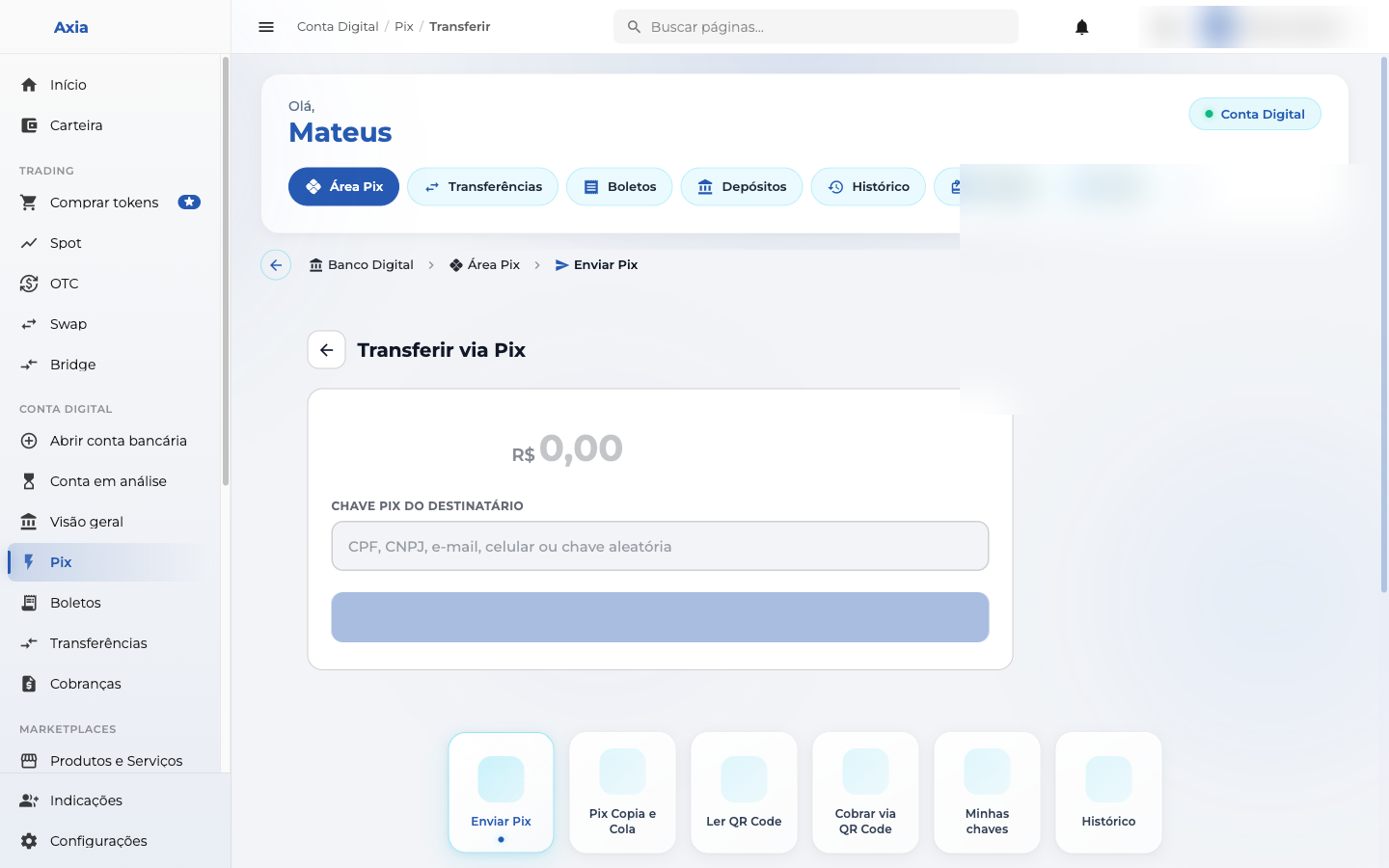
Click Continue.
2. Review
Check the recipient (name and institution), the amount, the key, and the balance after the transfer. You can add an optional message.
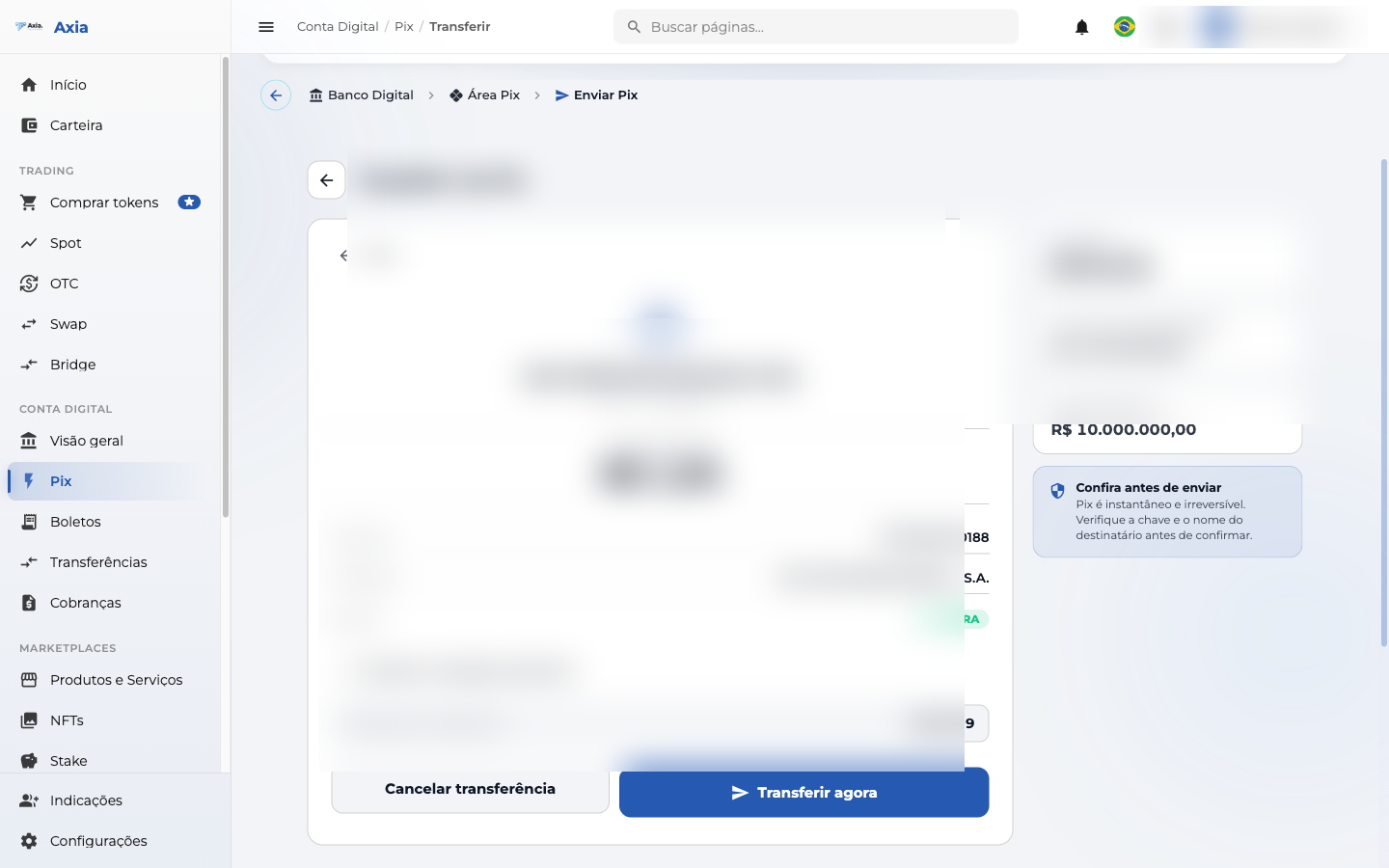
Pix is irreversible
Pix is instant and irreversible. Verify the recipient's key and name before confirming.
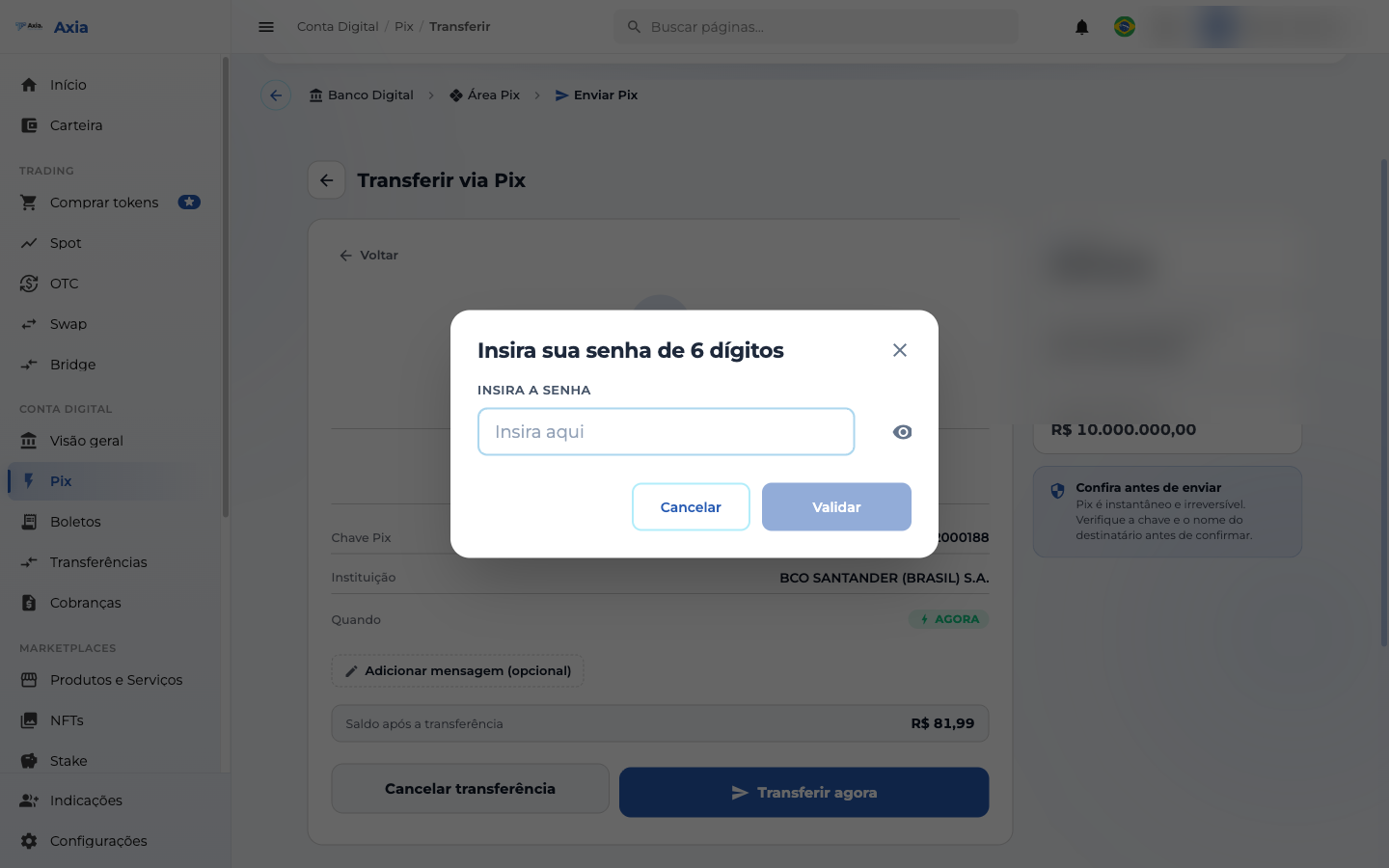
3. Authorize with your password
For security, enter your 6-digit transaction password and click Validate:
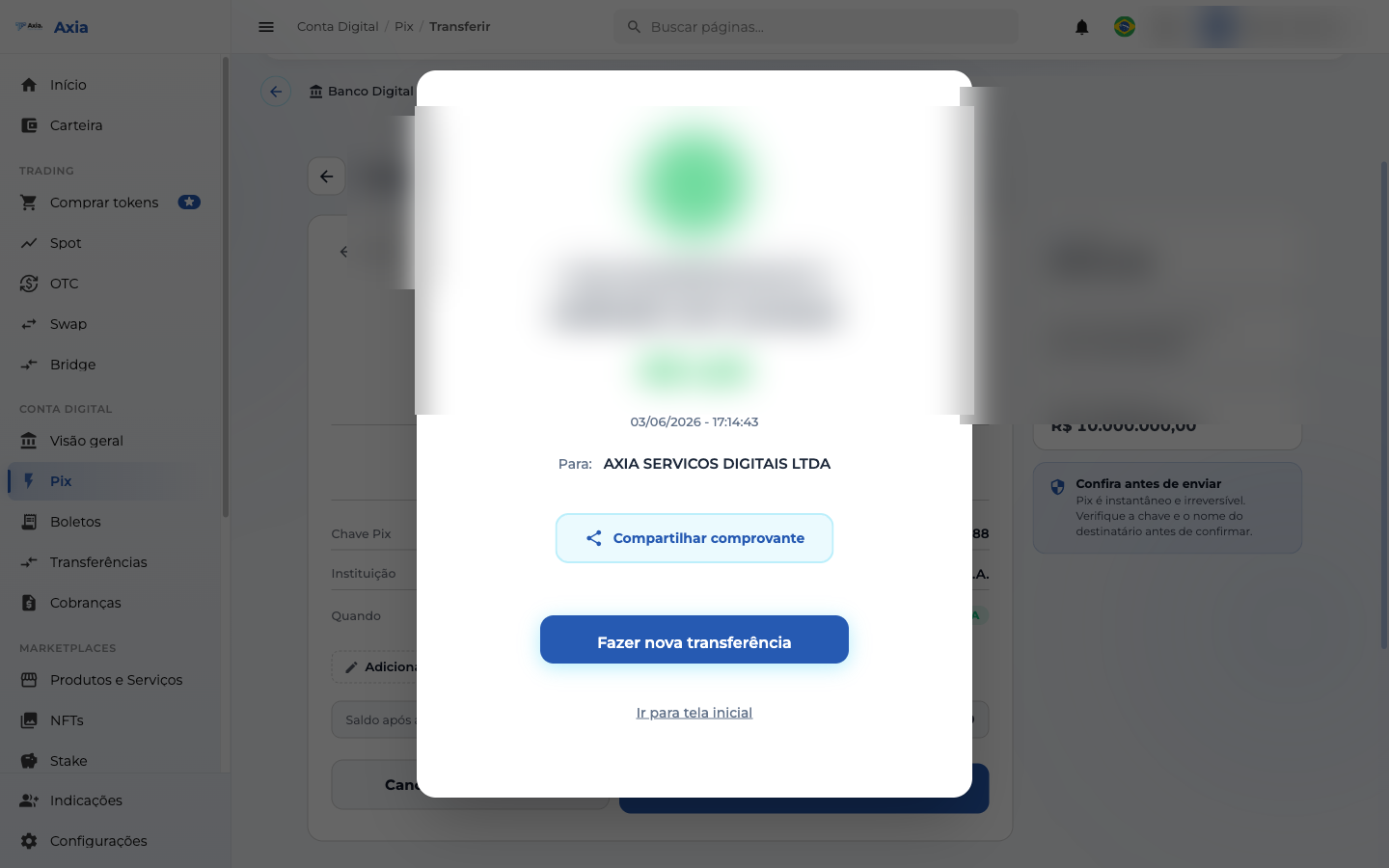
4. Receipt
Done! The transfer is confirmed and you can share the receipt, make a new transfer, or return to the home screen:
Receive / Charge via QR Code
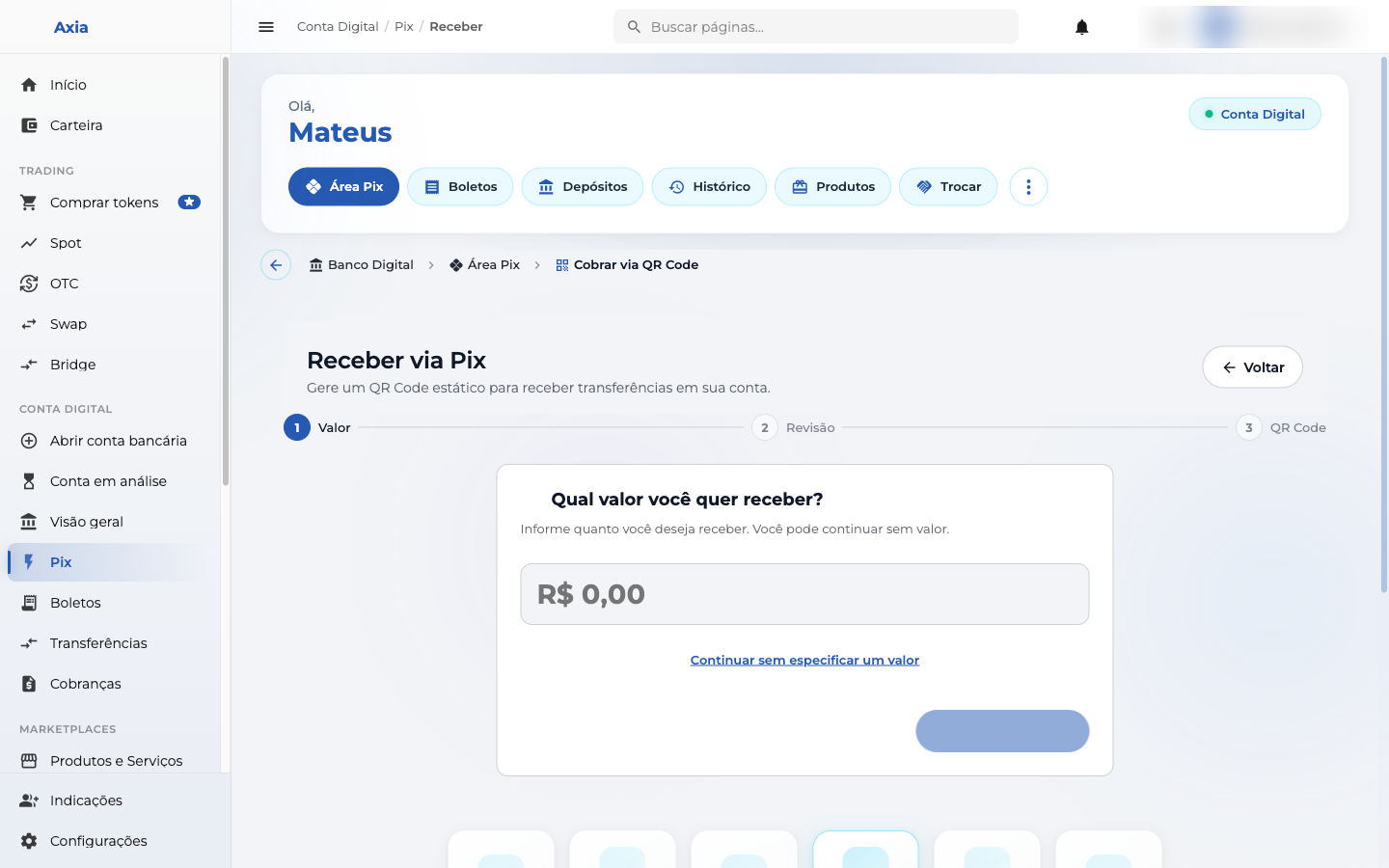
To receive, enter the amount you want to receive and the platform generates a QR Code (and a Copy and Paste code) for whoever is going to pay you:
My Pix keys
In My keys you manage your Pix keys — Mobile, CPF/CNPJ, Email, and Random key:
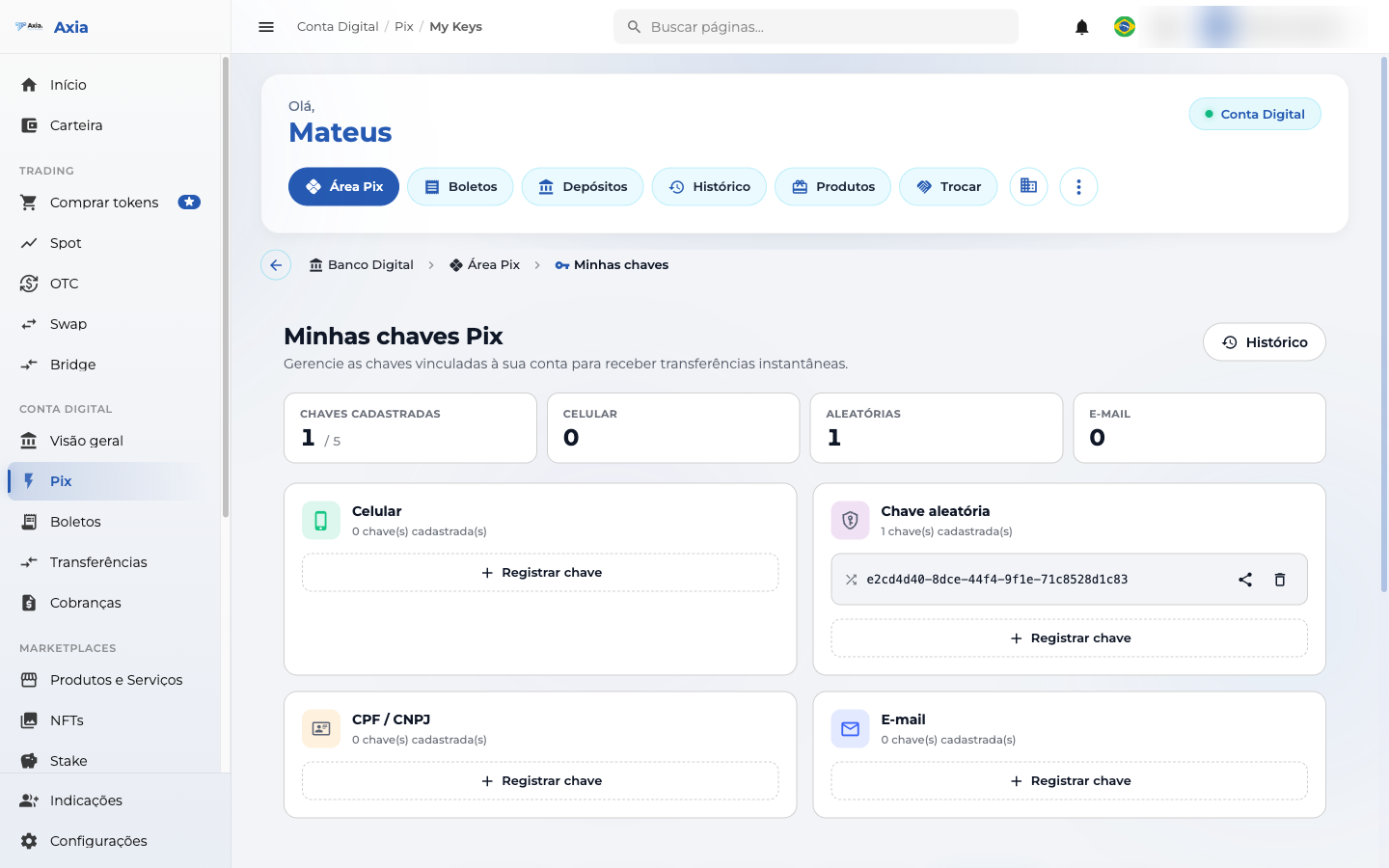
- Register a key for each available type.
- Share or delete keys already registered.
Other actions
- Pix Copy and Paste — paste a Pix code to pay.
- Read QR Code — scan a Pix QR Code with the camera to pay.
- History — track Pix sent and received, with 7 / 30 / 60 / 90 day filters.