
Overview (Digital Account)
With your digital account active, the Overview screen is the dashboard of your bank account: balance, quick actions, and shortcuts to everything you can do in banking.
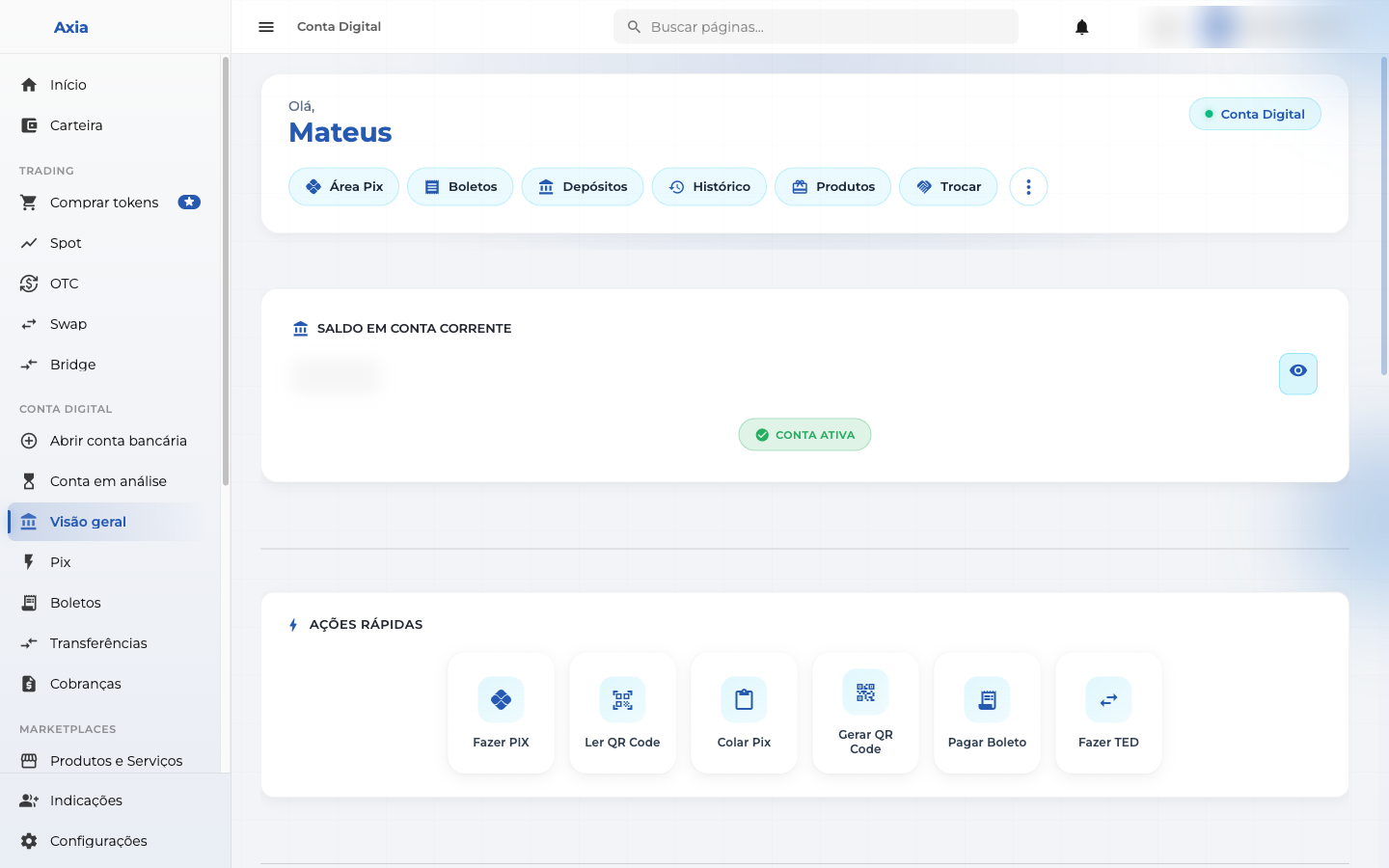
Account header
- Greeting with your name and the Digital Account badge.
- Shortcuts: Pix Area, Bill Slips, Deposits, History, Products, Switch (and more in the ⋮ menu).
- Checking account balance with the Active account badge — you can hide/show the value using the eye icon.
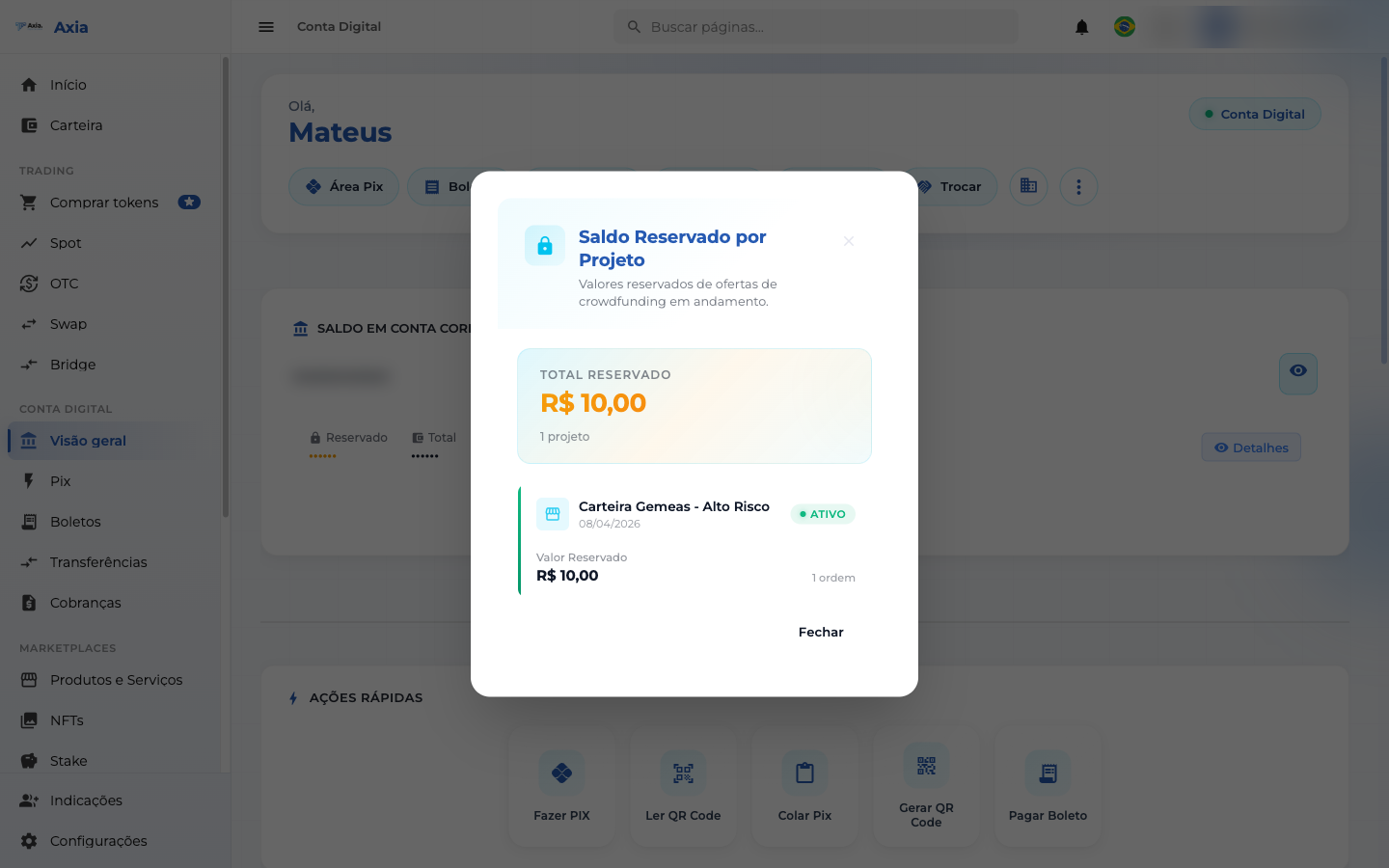
- When there are reserved amounts (for example, ongoing crowdfunding orders), the balance separates Reserved and Total. Under Details, you can see the Reserved Balance by Project:
Quick actions
The Quick actions bar gives one-click access to the most common operations:
| Action | What it does |
|---|---|
| Send PIX | Sends a PIX |
| Scan QR Code | Scans a PIX QR Code to pay |
| Paste Pix | Pastes a PIX Copy and Paste code |
| Generate QR Code | Generates a QR to receive PIX |
| Pay Bill Slip | Pays a bill slip |
| Send TED | Makes a TED transfer |
Each of these areas has its own guide on the next pages of this section.
TIP
The side menu, in the Digital Account section, lists the full areas: Pix, Bill Slips, Transfers, Charges, and more.