
Create an account and access the platform
This guide shows you, screen by screen, how to create your account on the platform, confirm your registration, and sign in for the first time. The process is quick — in just a few minutes you'll be on your home screen.
Before you begin
Have the following ready: a valid email, your CPF, and a mobile phone number. You'll also choose a password and a username.
Step 1 — Open the sign-up screen
On the entry screen, you'll see the access option for those who already have an account. Since this is your first time, click Sign up, at the bottom of the form.
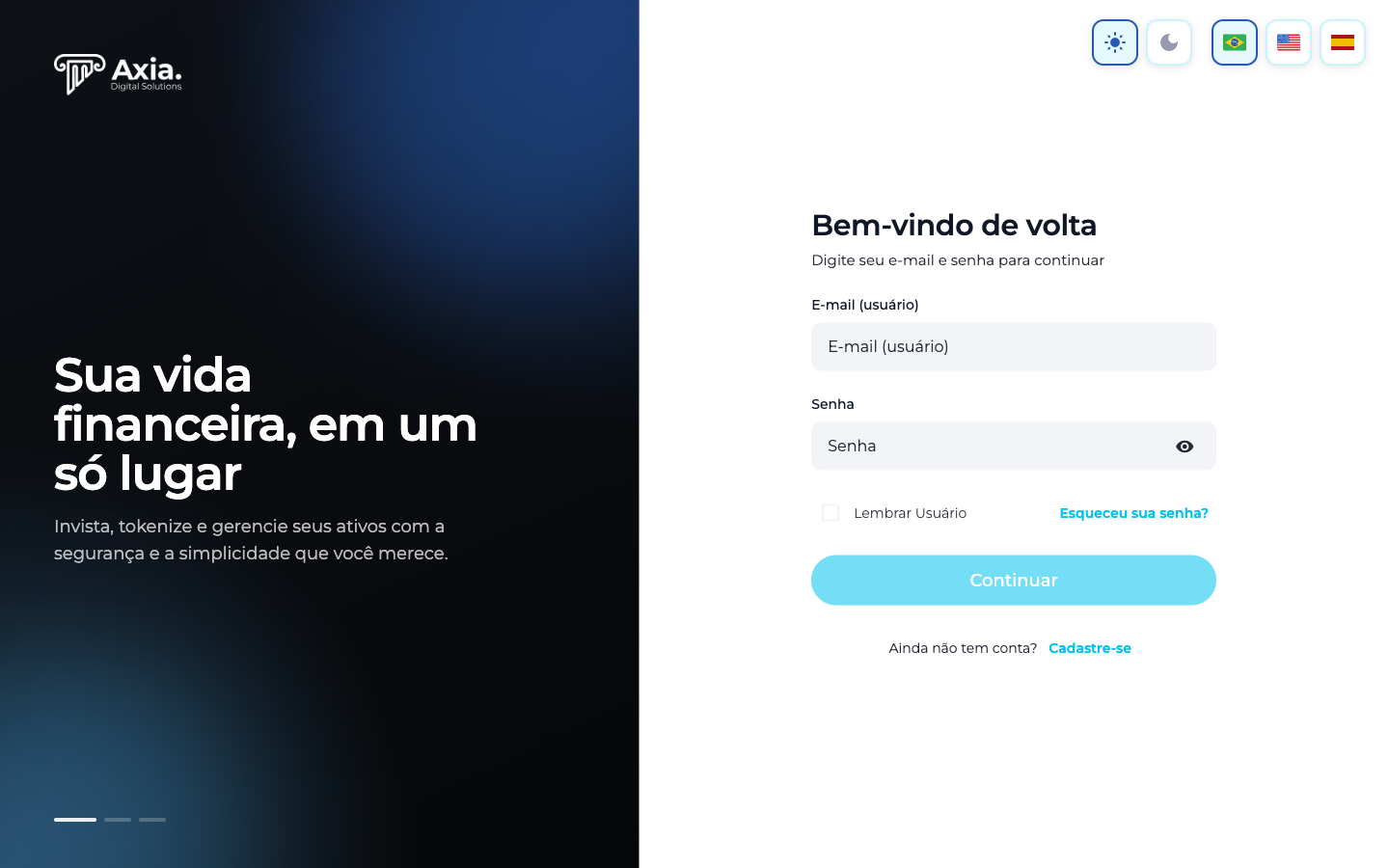
| What to do | Where |
|---|---|
| Start a new registration | Sign up button |
| Change the language | Flags at the top (🇧🇷 🇺🇸 🇪🇸) |
| Switch light/dark theme | Sun/moon icons |
Step 2 — Account type and nationality
Choose the account type and enter your nationality.
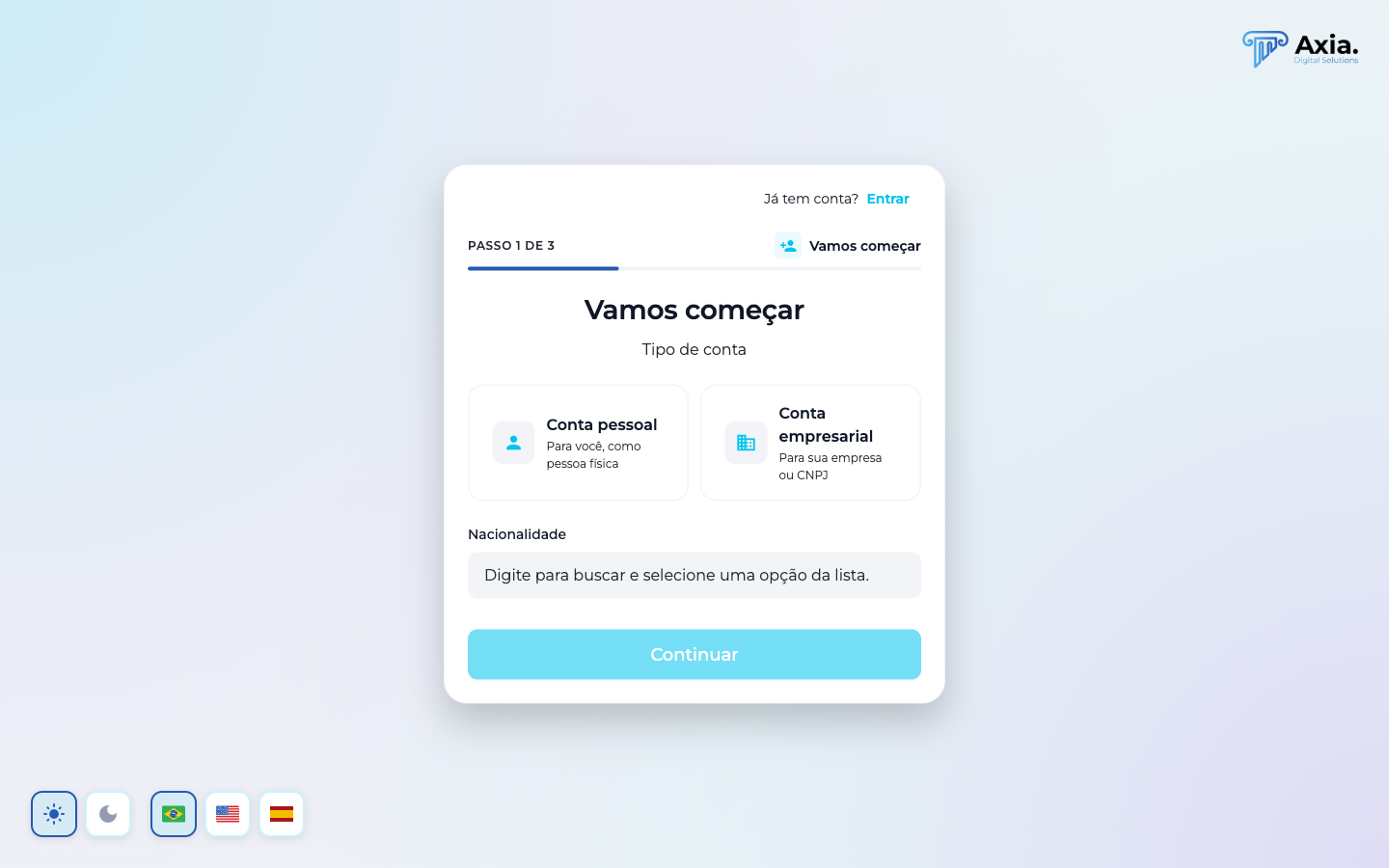
- Personal account — for you, as an individual.
- Business account — for your company or CNPJ.
Next, start typing in the Nationality field and select your country from the list (e.g., Brazil). Click Continue.
TIP
The country list appears in your language. Type the first few letters to filter faster.
Step 3 — What you want to open
For accounts in Brazil, the platform asks what you want to open now:
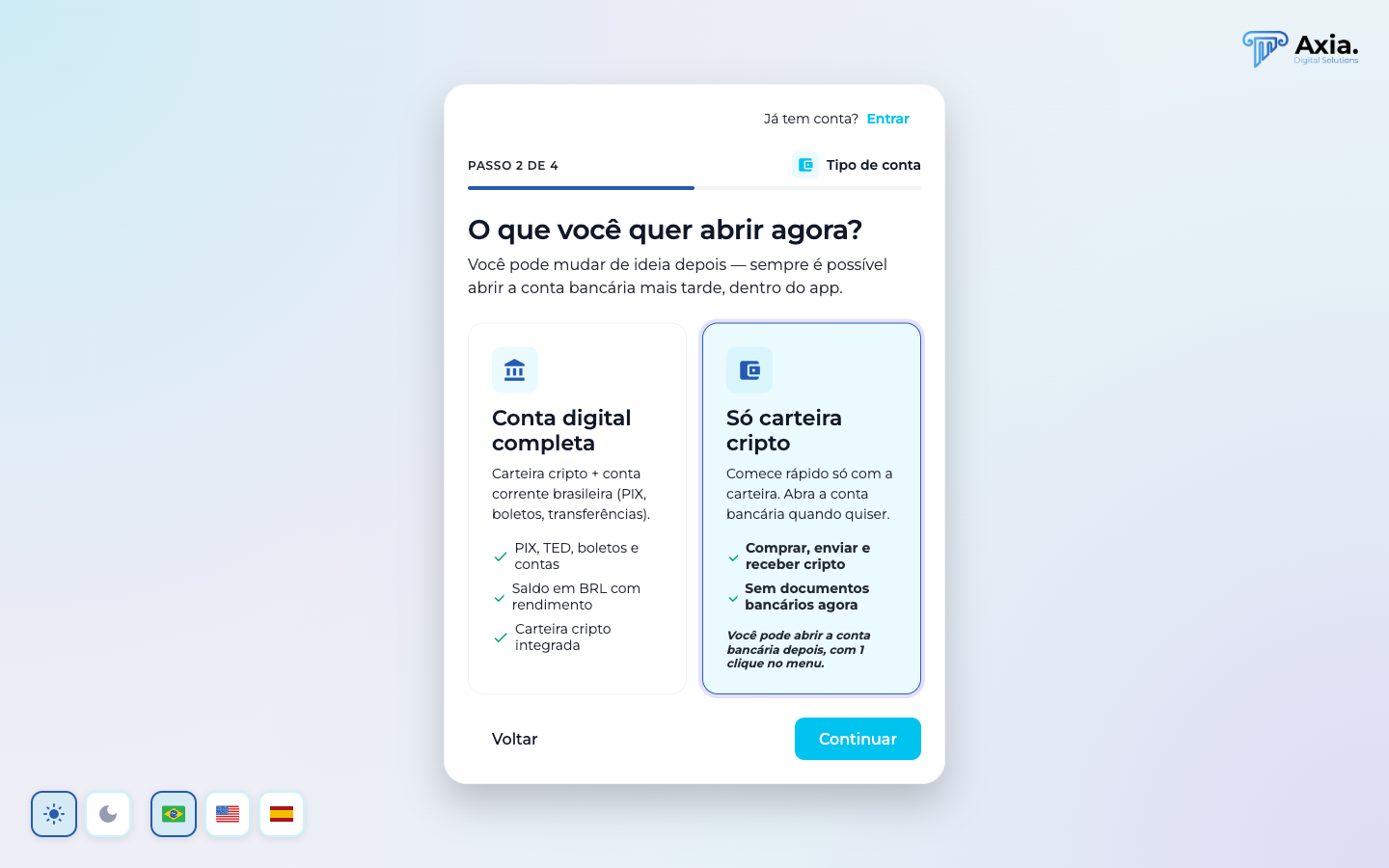
- Full digital account — crypto wallet + Brazilian checking account (PIX, boletos, transfers). Requires document submission.
- Crypto wallet only — get started quickly, with just the wallet. You can open the bank account later.
Select the option you want and click Continue.
Step 4 — Your details
Enter your identification details:
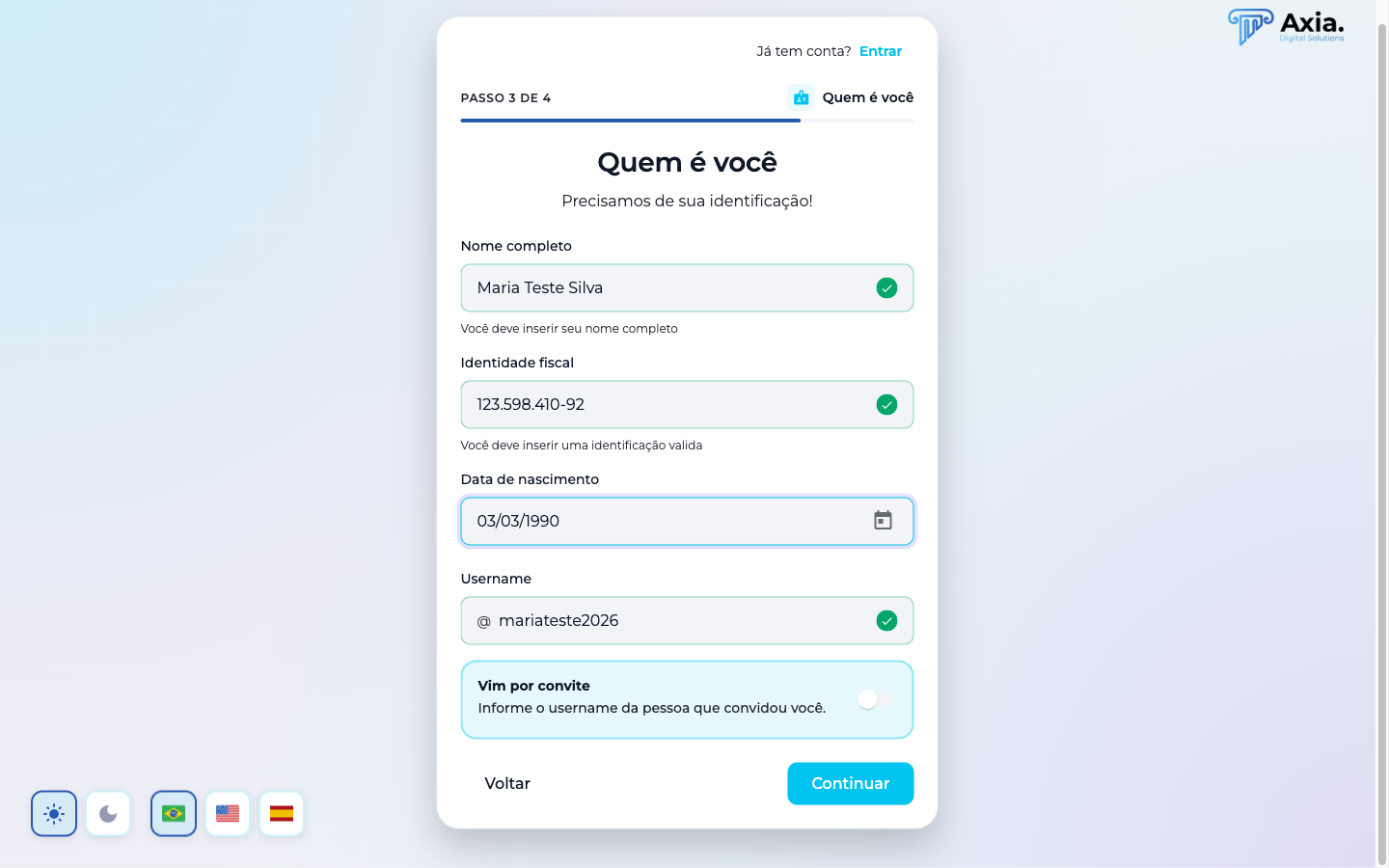
| Field | Note |
|---|---|
| Full name | As shown on your document |
| Tax ID (CPF) | Must be a valid CPF |
| Date of birth | Select it on the calendar — you must be 18 or older |
| Username | Choose an identifier of your preference |
| I came through an invite (optional) | Enter the username of the person who invited you |
When the fields become valid, a green ✓ appears next to each one. Click Continue.
Step 5 — Access and contact
Set up your access and your contact information.
Access — email (which will be your username) and password:
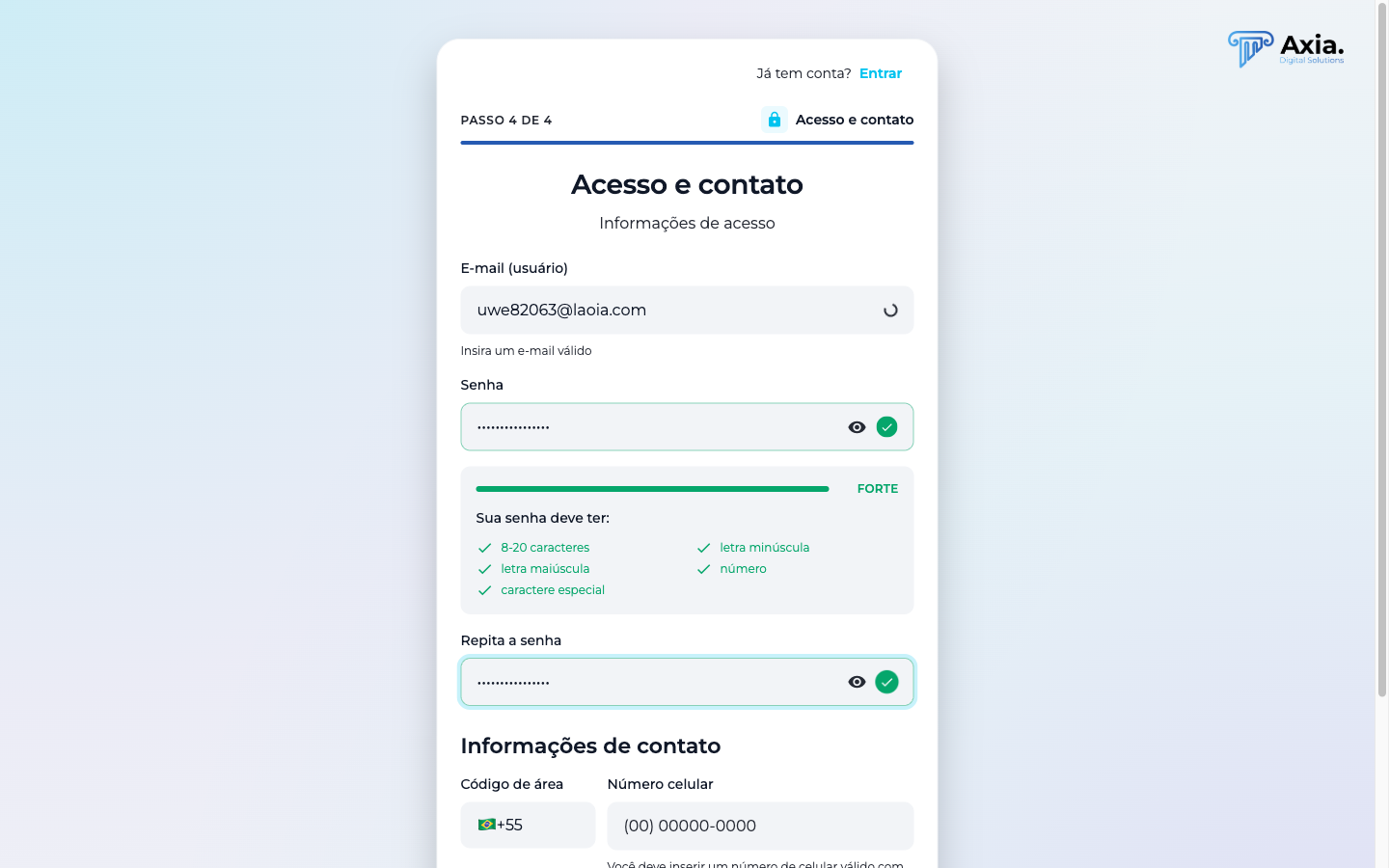
The password must meet all the requirements on the list (the bar indicates strength — aim for STRONG):
- 8 to 20 characters
- uppercase and lowercase letter
- number
- special character
Repeat the password in the next field.
Contact — area code and mobile phone number:
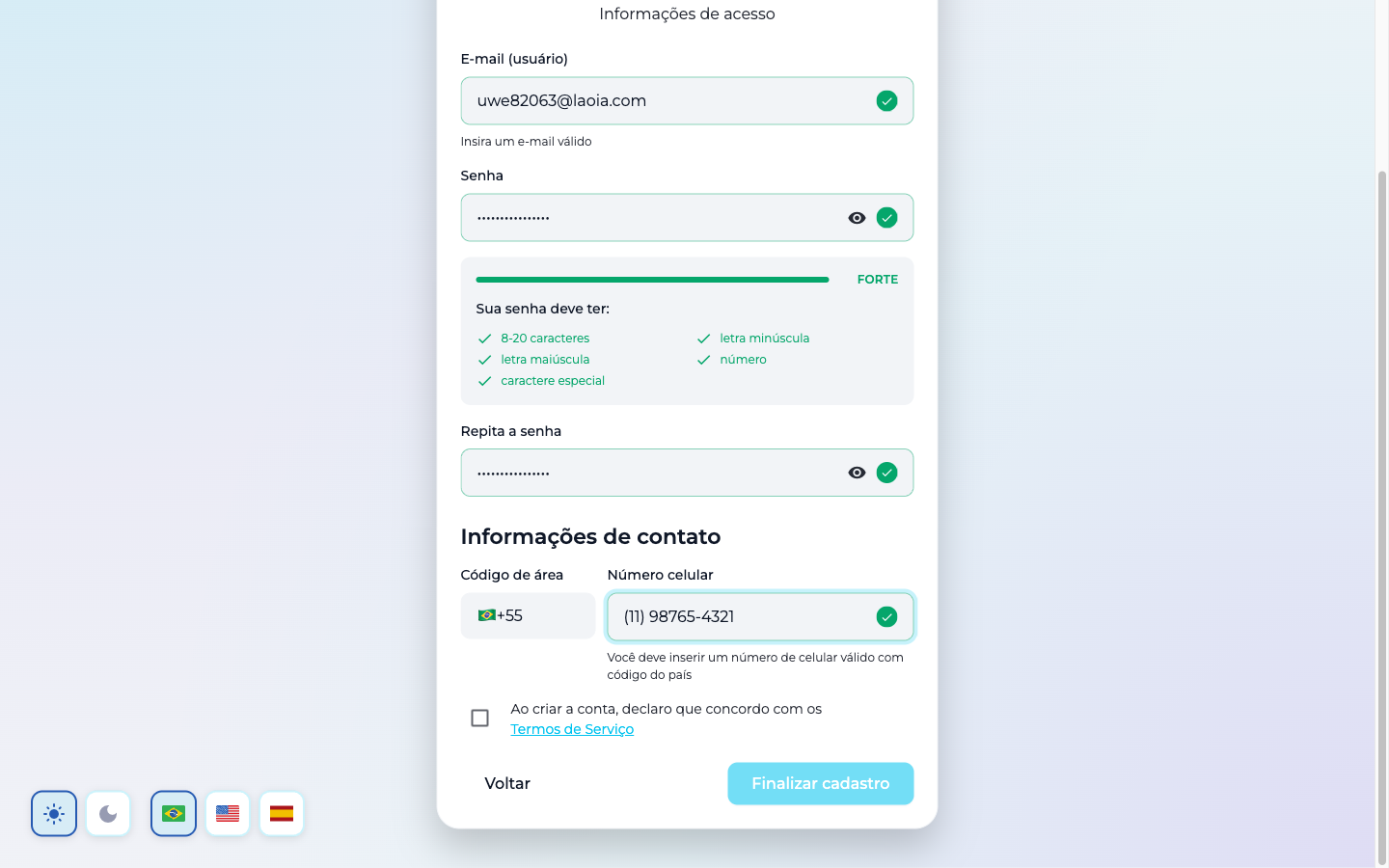
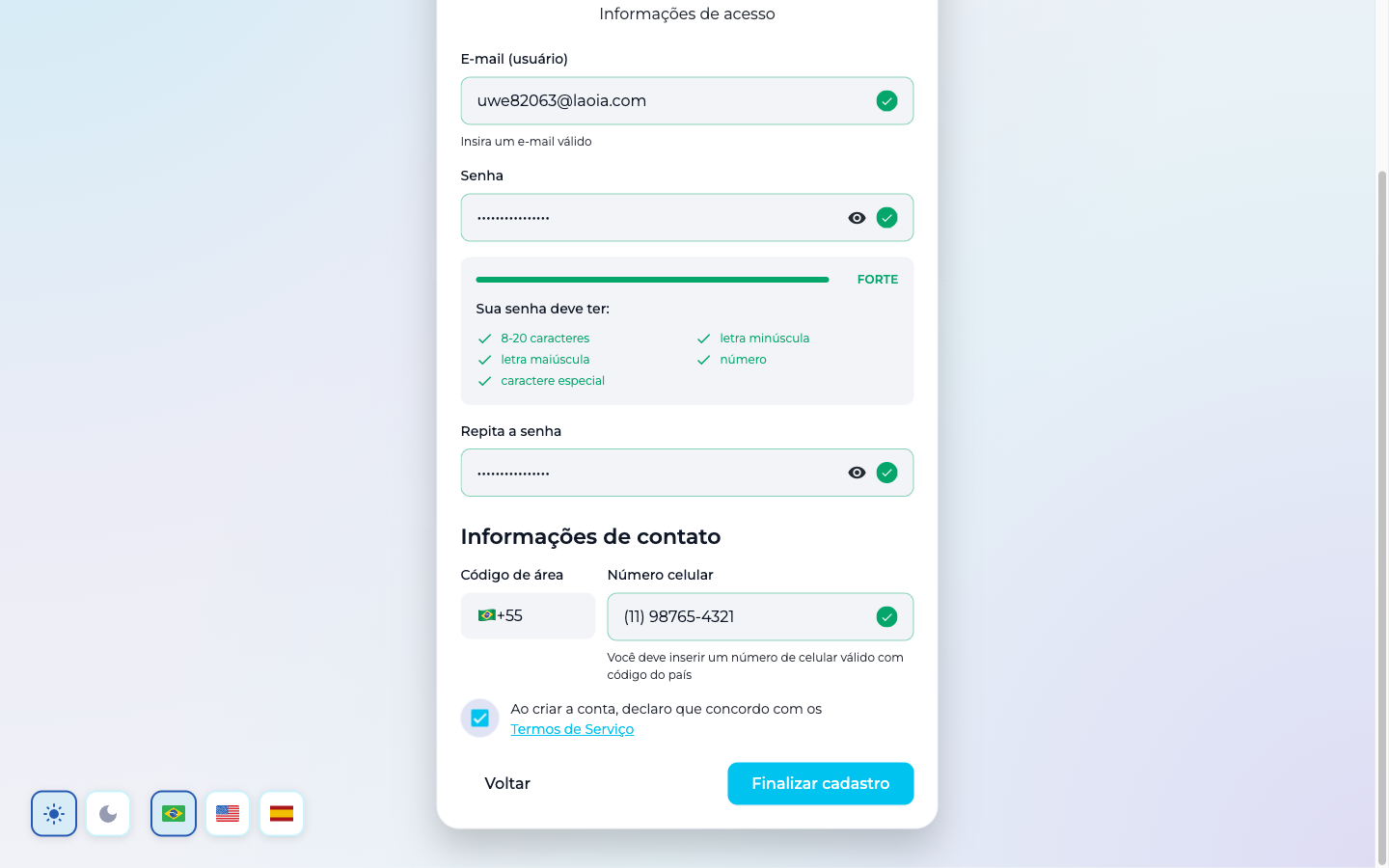
Finally, check the box to accept the Terms of Service and click Finish registration:
Account created 🎉
Done! Your account has been created and the platform sends a confirmation code to your email.
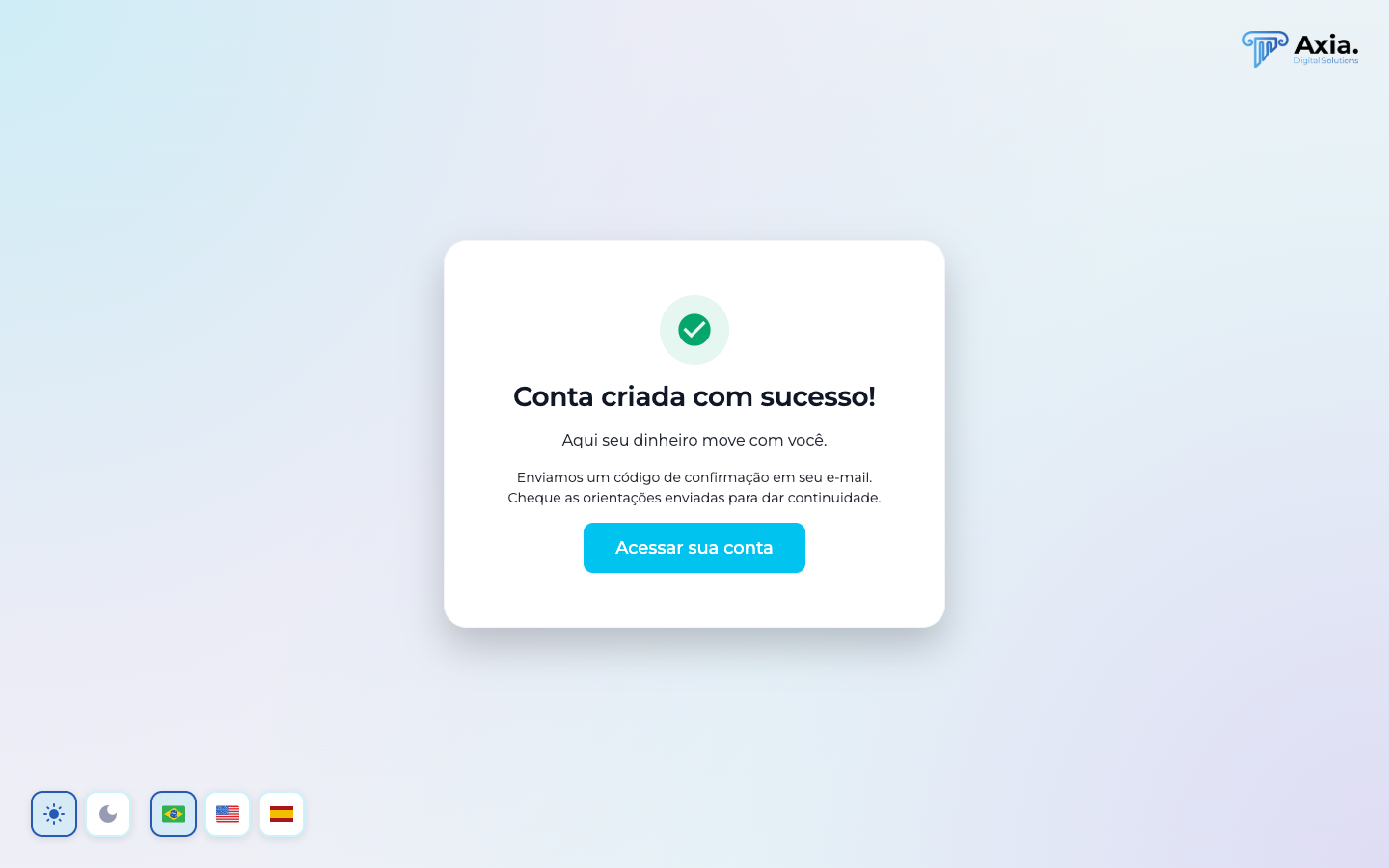
Confirm your email
Open the email you received and follow the instructions to confirm your account. Without this confirmation, access remains limited.
Once confirmed, click Access your account.
Sign in to the platform
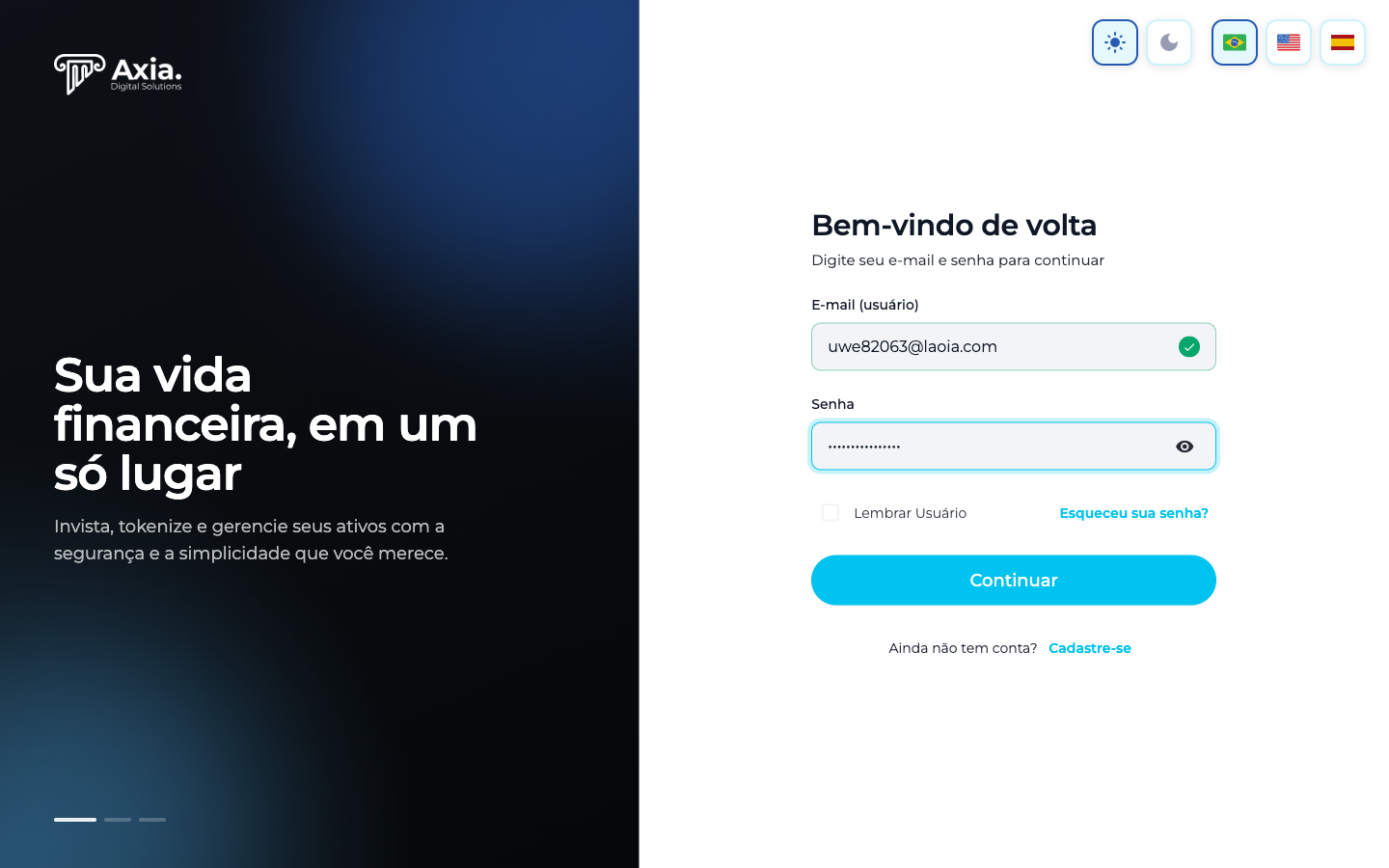
On the login screen, enter your email and your password and click Continue.
Forgot your password?
Use the Forgot your password? link on the login screen to reset it by email.
Your home screen
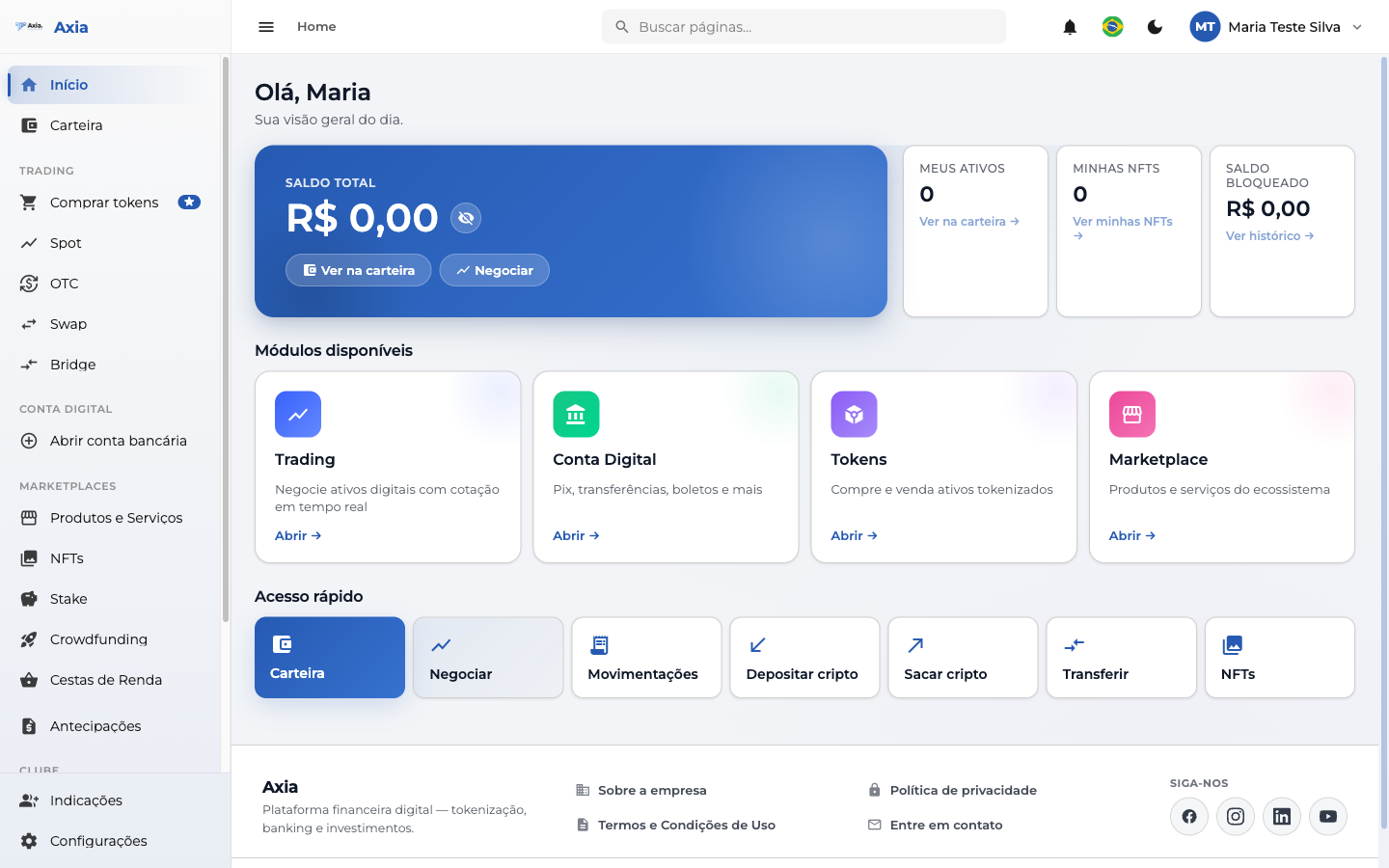
You're in! This is your Home, with an overview of your day:
Here you'll find:
- Total balance and shortcuts to view your wallet and trade.
- Summary cards — my assets, my NFTs, and blocked balance.
- Available modules — Trading, Digital Account, Tokens, Marketplace.
- Quick access — Wallet, Trade, Transactions, Deposit crypto, Withdraw crypto, Transfer, NFTs.
- Side menu — full navigation across all areas of the platform.
Next steps
- Complete your registration to unlock all features (the platform may offer this right on your first sign-in).
- Strengthen your security by enabling two-factor authentication (2FA) — see Setting up 2FA.
- Open your bank account if you started with just the crypto wallet.