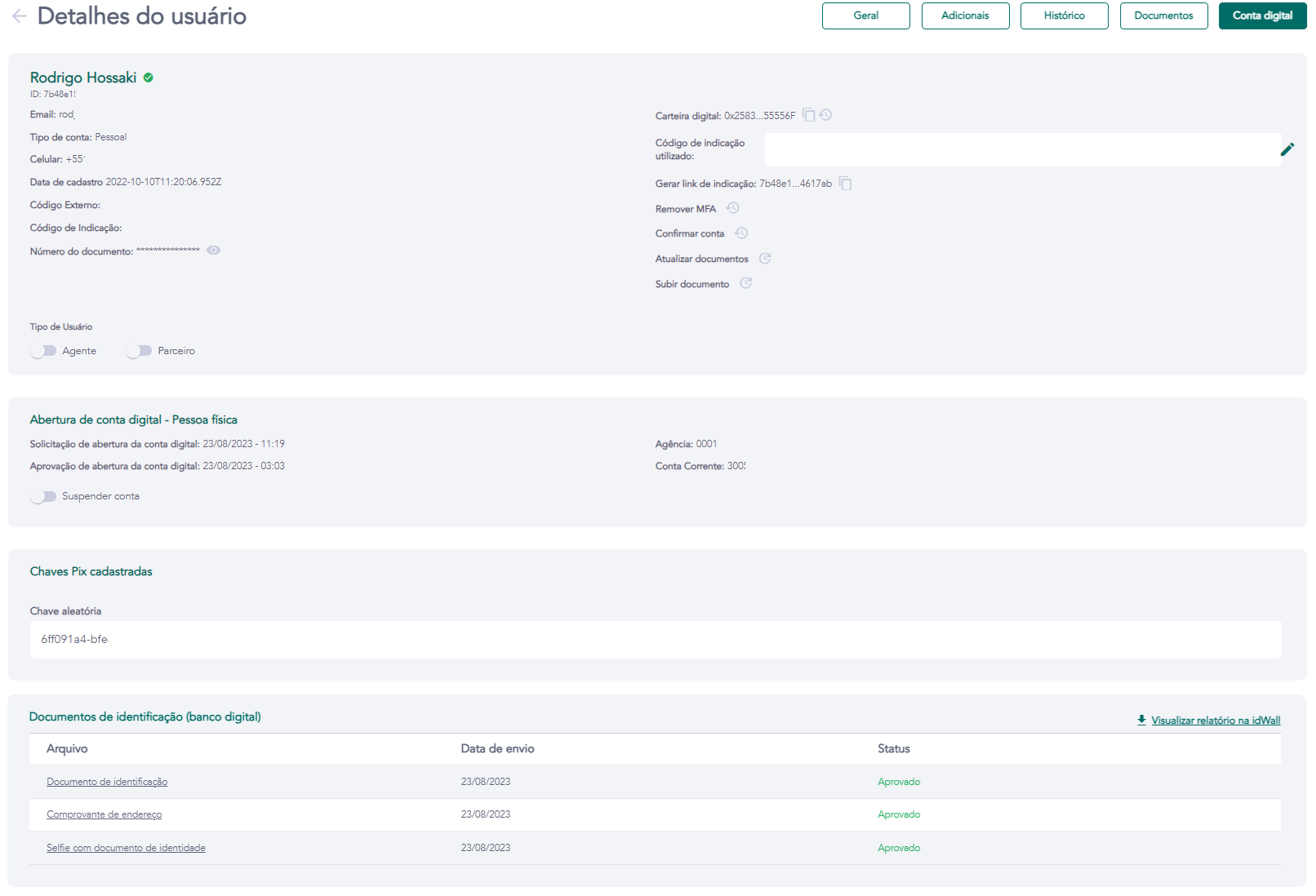
Details - Digital Account
Access requirements
- Permission (module):
viewUserto view;manageBankingAccountfor administrative actions - License/Feature:
BACKOFFICE_DIGITAL_BANKINGandDIGITAL_BANKINGenabled on the tenant - Menu container: GENERAL → Users group → User list → eye icon → Digital Account tab
What it is / when to use
The Digital Account tab centralizes the user's banking information and administrative controls for the account. Use it to check the account opening status, banking details, registered PIX keys, and to act in support, security, or emergency situations.
Account opening — Individual / Company
The digital account is only approved after:
- Validation of the user's information via the idWall platform (automated KYC).
- Approval of documents by the administrator in the BackOffice (Documents tab).
Once approved, the tab displays the full account opening information and banking details.
Digital account status
The digital account status (approved, pending, suspended) is read from the BLS (BillingService), not directly from the banking provider. Discrepancies between the two may indicate an orphaned account at the provider — check under Audit → Digital Banking creation failures.
Displayed fields
| Field | Description |
|---|---|
| Account status | Current state: Pending, Under review, Approved, Suspended |
| Branch / Account | Assigned branch and account number |
| Account type | Checking or Payment |
| Opening date | Date the account was approved by the provider |
| Registered PIX keys | List of active PIX keys (random, CPF/CNPJ, email, phone) |
Administrative actions
| Action | What it does | Permission |
|---|---|---|
| Create digital account | Initiates banking onboarding via BackOffice for a user who does not yet have an account | manageBankingAccount |
| Suspend account | Temporarily blocks the user's digital account via suspension flag | manageBankingAccount |
Suspending an account
Suspending the digital account immediately blocks all banking operations (PIX, wire transfers, withdrawals). Use only in cases of suspected fraud, compromised credentials, or legal order.
Business rules
- Account confirmation ≠ account opening: approving the user's KYC (the Confirm account action on the General tab) does not create or approve the banking account — they are independent flows.
- The digital account can only be created from the BackOffice if the
BACKOFFICE_DIGITAL_BANKINGfeature is enabled and the user does not yet have an account with the provider. - The random PIX key is generated automatically by the provider after the account is approved.
Related screens